
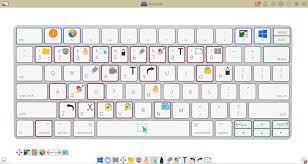
The modern Windows interface is primarily based around a graphical user interface (GUI) that you interact with using the mouse, but it isn’t my preferred way to use my PC. Instead, I mostly use keyboard shortcuts, and at the heart of that approach is Alt+Tab.
Alt+Tab is a multitasking dream
Alt+Tab only does one thing: it lets you switch between open applications. To use it, press Alt+Tab, then tap Tab to cycle through the visual strip of your active windows. Once you release the Alt key, it’ll open whichever app was selected.
What makes it so effective is how little effort it takes. Your hands never have to leave the keyboard, you aren’t hunting for icons, and you’re not dragging a cursor across the screen. Once it becomes a habit, it is noticeably faster than picking up your hand, moving it to the mouse, and then clicking.
There are a few variations on Alt+Tab command that make it even more useful. For example, you can press Alt+Shift+Tab to move backward through open apps, or hold Alt and tap Tab repeatedly to skim through windows. If you want something that doesn’t create a pop-up, press Alt+Esc to cycle through apps without the visual overlay, though it’s a bit harder to use.
Alt-tab shines whenever you’re doing a lot of typing. I use it most often when I’m taking notes in Joplin and a browser tab or copying text from one app to another.
Win+Tab pairs perfectly with Alt+Tab
Alt+Tab may be the most common short, but it works best when used in combination with other keyboard navigation shortcuts rather than in isolation.
Some of the most useful additions are the virtual desktop navigation shortcuts. Press Win+Tab to open Task View for a full overview of your windows and desktops. From here, you can create separate spaces for different kinds of work. I usually keep one open for research and reading, one for communication, and another for working on drafts or photo editing. Even better, you don’t have to stay in Task View to move between virtual desktops. You just press Ctrl+Windows+Left or Right Arrow to jump across desktops instantly. It’s like having multiple monitors without the hardware, and it pairs naturally with Alt+Tab.
Windows excels at window management
Window management shortcuts also play an important role once you transition to a keyboard-first approach. You can tap Windows+Arrow keys to snap windows to the side or corners of your screen, which makes it easy to compare documents. You can press Windows+D to clear everything and show the desktop in an instant, while Windows+M minimizes all windows and Windows+Shift+M brings them back.
To launch apps, I often use Windows+(Number). If you pin your most-used programs to the taskbar, this shortcut opens or switches to them immediately—no searching or clicking required. Alternatively, you can download and install Command Palette, which allows you to quickly search for apps to launch them. There are a few other small but important shortcuts that I use regularly:
Windows+E — Open Windows File Explorer
Windows+i — Opens the Settings App
Windows+L — Locks my PC
When you spend most of your day using the keyboard, the time savings add up more quickly than you’d think.
The keyboard is best for the Start Menu too
Once you’re in an all-keyboard workflow, switching to the mouse to search for apps and files is a very unwelcome break in the flow. Fortunately, the Start Menu can basically be used without a mouse. Tapping the Windows key opens the Start Menu, but you don’t need to actually click the search bar to begin searching—just start typing. It is a fast, effective way to find applications and files. I’d strongly recommend disabling Bing Search though. It noticeably slows down search results, which is exactly the opposite of what anyone wants.
Alternatively, you could download and install Command Palette, which is part of the PowerToys suite. Command Palette does everything that the Start Menu does, but it also does so much more. It can do math, run commands, launch applications, search for files, change system commands, and more. It is the perfect addition to Windows if you use it in a keyboard-first approach.
The keyboard can be faster than the mouse
Once you start using Alt+Tab and a few other keyboard shortcuts that pair well with it, it is difficult to go back to a mouse-centric interface. The keyboard—once you adjust—is often significantly faster, and I don’t have to interrupt my workflow to grab a mouse. It also translates indirectly to Linux operating systems, where you can make extensive use of a keyboard-first approach when you’re using the Terminal.
For more information on solutions for running your businesses’ technology more efficiently, visit our website or contact Megan Meisner at mmeisner@launchpadonline.com or 813 448-7100 x210.
This was originally posted by HowtoGeek.